Recording a Lender Approval
Lenders may respond through the system, or they may communicate with you directly by email or via their lender portal. If they do not respond through the system, or if they respond with information that does not match your commitment, you will need to take manual action to record that approval response.
Related Training
Video Walkthrough
Step-by-Step Guide
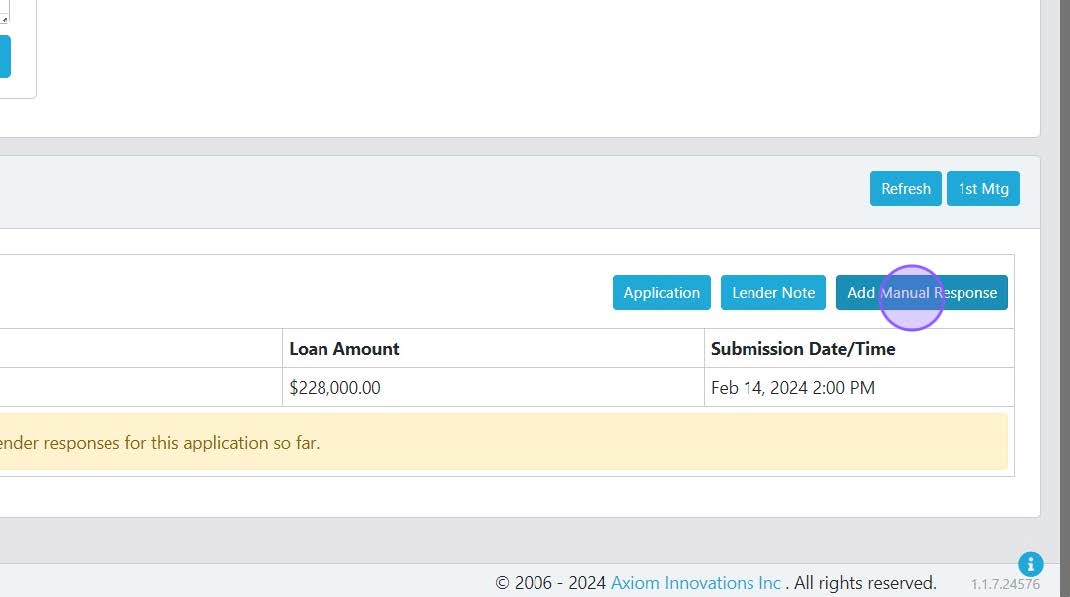
1) Click "Add Manual Response"
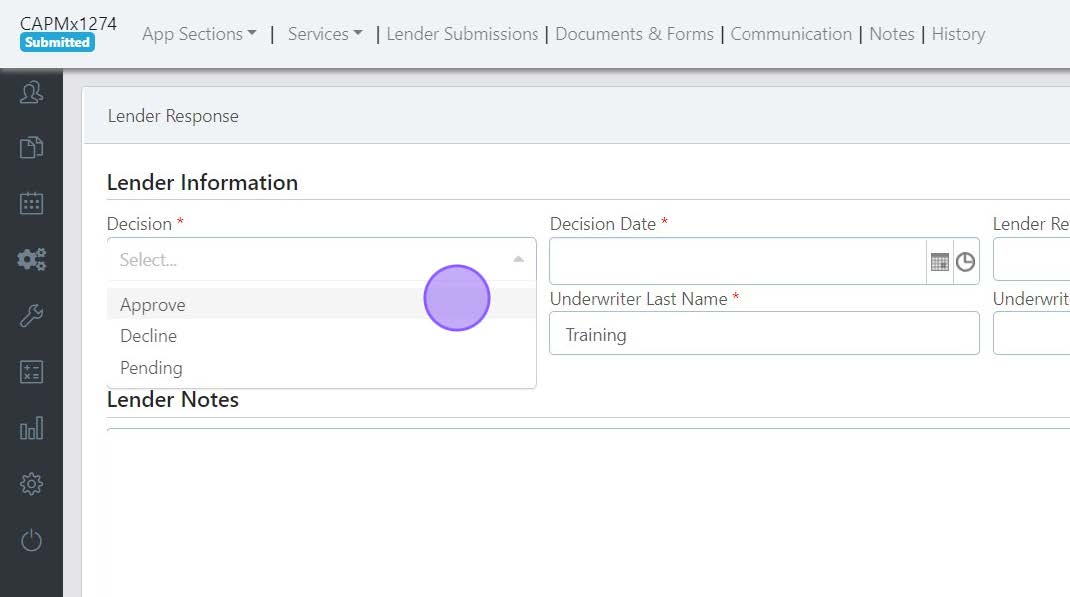
2) Fill in the required drop boxes and information about the approval you received.
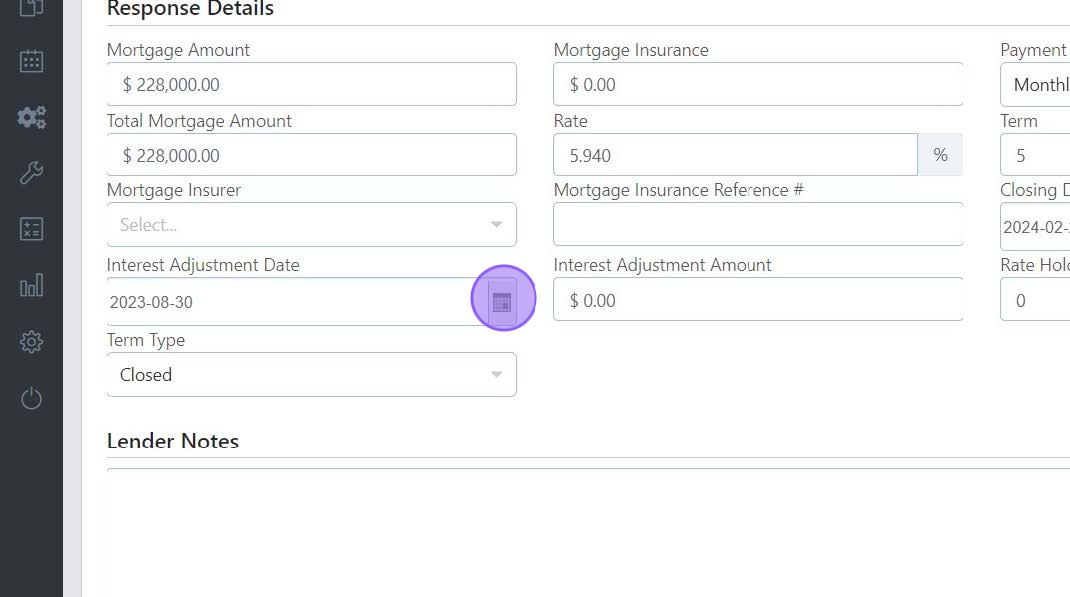
3) The Response Details will have been filled in from the information on the mortgage submission. You can update any as needed.
4) Click "Submit"
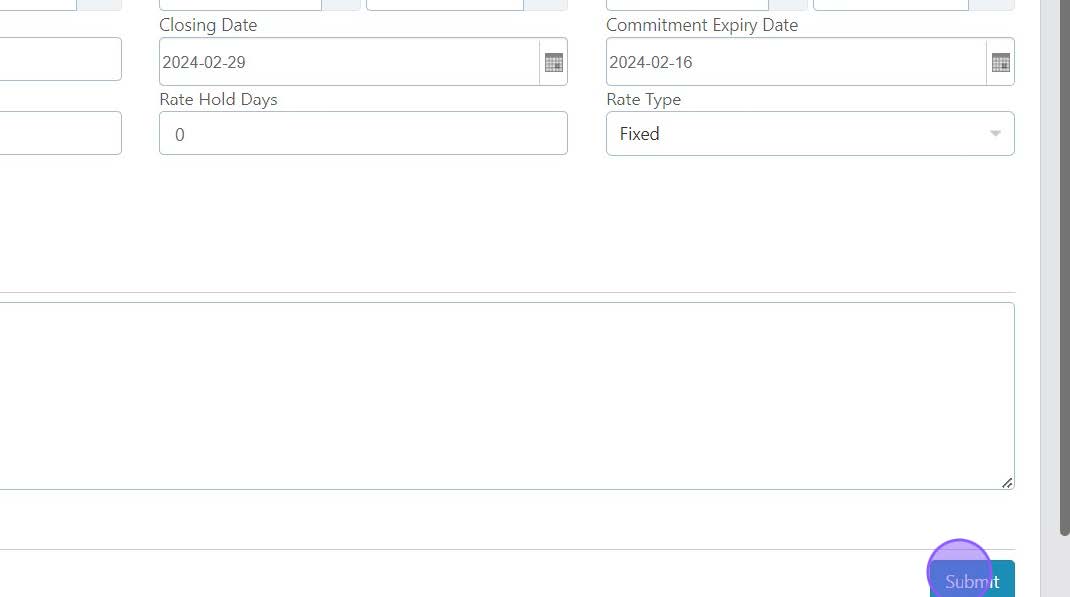
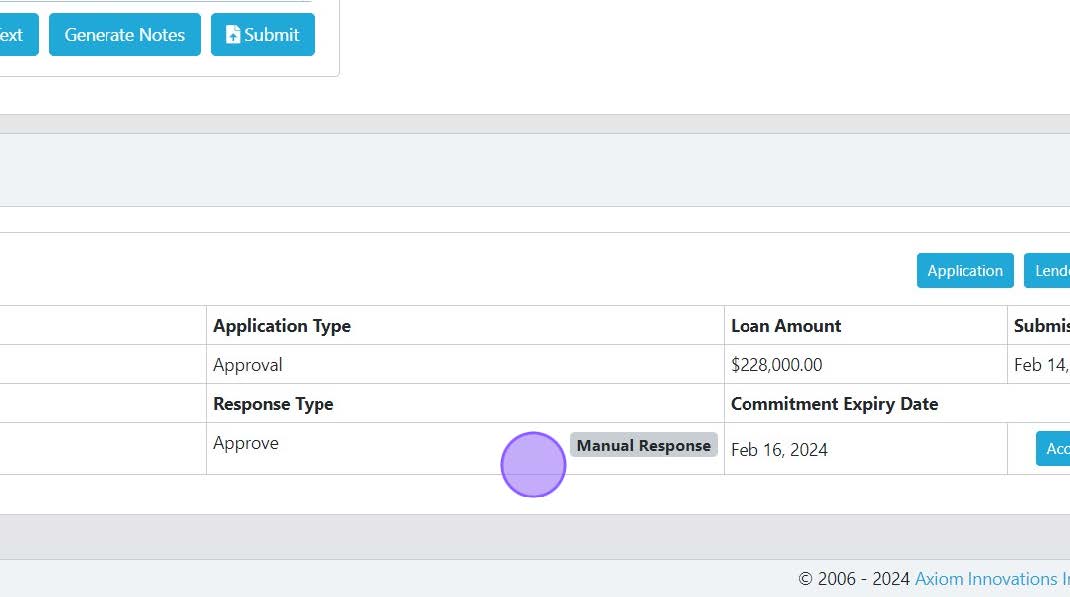
5) The response is recorded here as a "Manual Response" to differentiate it from a response that came back through the system from a lender.
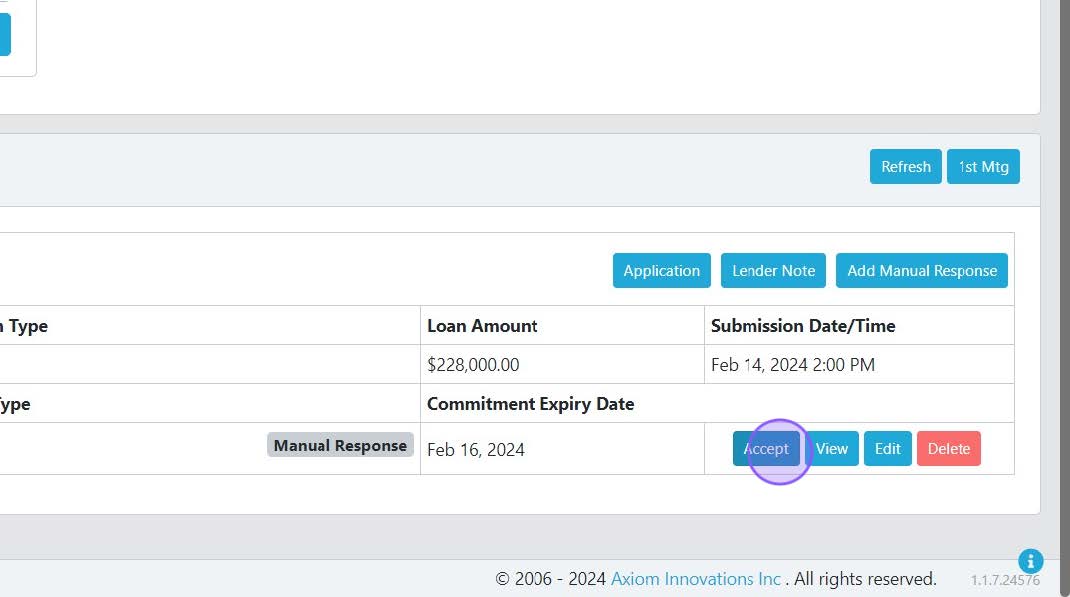
6) Click "Accept" to apply these values to the file and move your deal status to "Accepted".
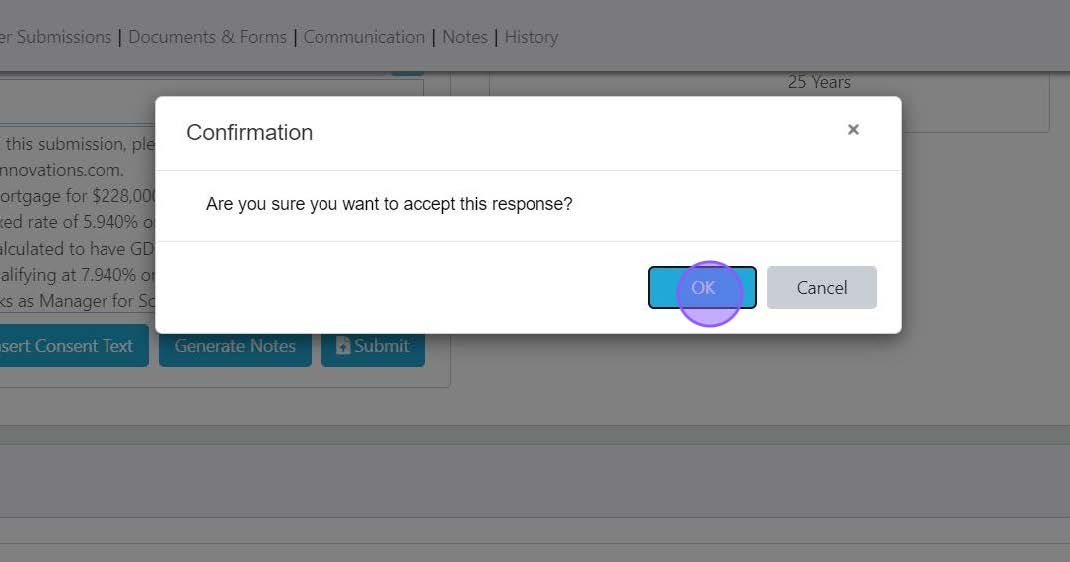
7) Click "OK" to accept the manual response
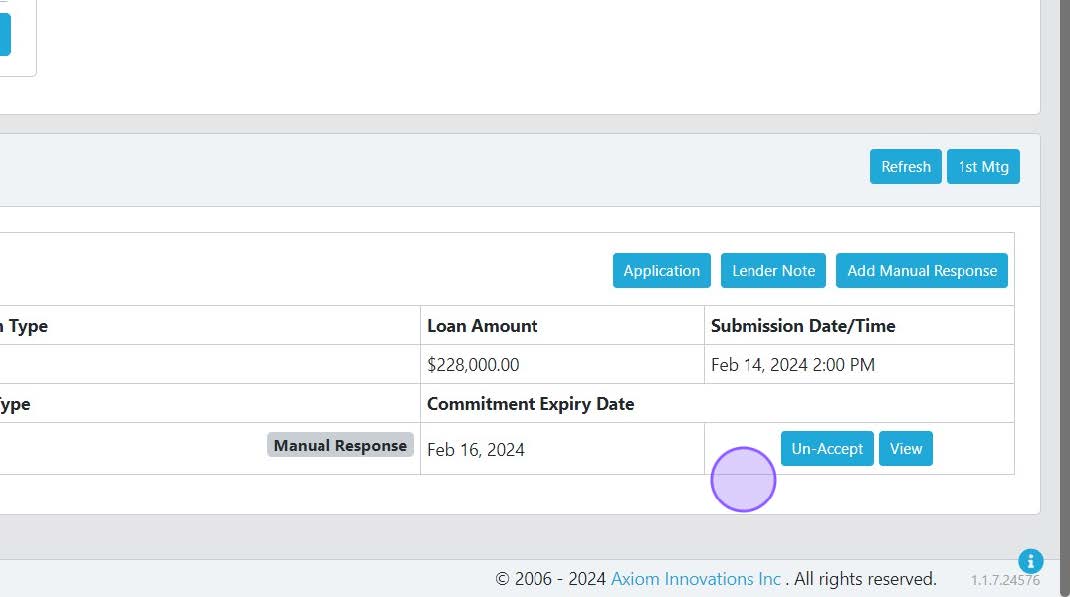
8) An accepted response looks like this. The options have changed to "Un-Accept" and "View".
Scarlett Tips
Any documents you generate will use the values from this accepted response, rather than the values in the Mortgage Details Request screen.
This process can also be used to override a payment amount, if the system is generating a slightly different value than your lender commitment.